
Download MouseZoom – Fast, Free, Secure Cursor Speed Tool for Mac
Overview
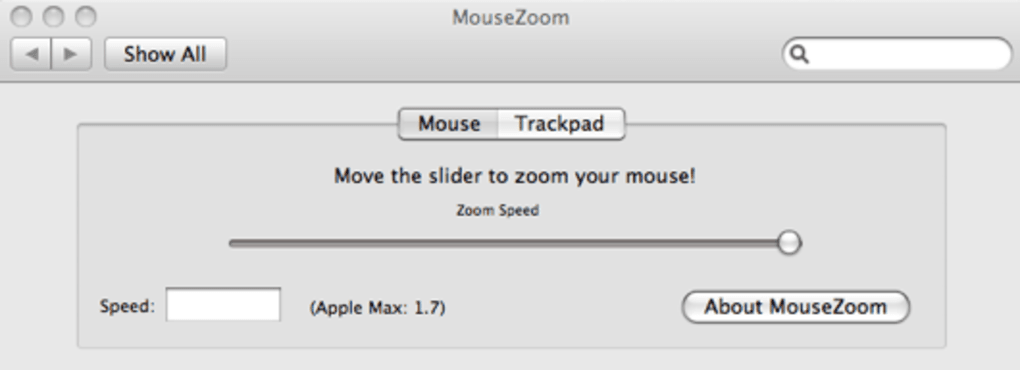
MouseZoom is a lightweight utility designed to give you complete control over the cursor speed of Apple’s Magic Mouse, Mighty Mouse, trackpads, and virtually any generic mouse connected to a macOS system. While macOS offers a built‑in speed slider, many users find it insufficient—especially when the maximum setting still feels sluggish for tasks that demand rapid pointer movement. MouseZoom bridges that gap by adding a secondary slider that pushes the speed well beyond Apple’s native limits, all while keeping the interface simple and the performance stable.
The app installs as a System Preference pane, allowing you to access the speed control from the same place you manage other macOS settings. Even if you’ve already set the macOS cursor speed to its highest value, MouseZoom can still accelerate the pointer, giving you a truly “Uber fast!” experience. The tool is free, runs on Intel‑based Macs, and does not require any additional drivers or background services, making it a secure and low‑maintenance solution for power users, designers, and anyone who spends long hours navigating the desktop.
Key Features & Benefits
- Dual‑slider interface: one for macOS default speed, another for MouseZoom‑enhanced speed.
- Works with Magic Mouse, Mighty Mouse, Apple trackpads, and most third‑party USB/Bluetooth mice.
- Humorous speed descriptors (e.g., “Nice and Fast”, “Uber fast!”) give instant feedback.
- Zero‑cost, no hidden fees or trial periods; the full version is free.
- Runs as a System Preference pane, eliminating the need for separate menu bar icons.
- Lightweight footprint: less than 5 MB download and minimal CPU usage.
- Secure installation with code signing verified by Apple.
- Instant changes – no need to log out or restart after adjusting the slider.
Pros
- Extends cursor speed beyond macOS limits without compromising stability.
- Simple, intuitive UI that feels native to macOS.
- Free and fully functional, no trial restrictions.
- Compatible with a wide range of Apple and third‑party pointing devices.
- Lightweight and does not affect system performance.
Cons
- Only supports Intel‑based Macs; Apple Silicon users must run under Rosetta 2.
- Lacks advanced customization such as per‑application speed profiles.
- No built‑in keyboard shortcuts for quick speed toggling.
- Requires manual installation of the preference pane (no automatic update mechanism).
- Limited to macOS; no Windows, Android, or iOS version available.
Installation & Compatibility
Installing MouseZoom is straightforward and can be completed in under five minutes. Follow these steps to get the utility up and running:
- Visit the official MouseZoom download page and click the “Download for macOS” button. The file is a signed .dmg package, ensuring a secure download.
- Open the .dmg file and drag the MouseZoom preference pane into the
/Library/PreferencePanes/folder (or your personal~/Library/PreferencePanes/if you prefer a per‑user install). - Enter your administrator password when prompted to authorize the installation.
- Open System Preferences and locate the newly added “MouseZoom” pane at the bottom of the list.
- Adjust the slider to your desired speed. As you move the slider, the cursor speed updates instantly, and a playful rating appears to indicate the intensity of the setting.
System Requirements: MouseZoom runs on macOS 10.10 (Yosemite) through macOS 13 (Ventura) on Intel‑based Macs. While it will install on Apple Silicon machines, it operates under Rosetta 2, which may introduce a slight performance overhead. The application does not require any additional frameworks, making it compatible with standard macOS installations out of the box.
After installation, MouseZoom automatically loads each time you log in, ensuring your preferred speed settings persist across reboots. If you ever need to remove the tool, simply drag the preference pane back to the Trash and empty it; no residual files remain.
Frequently Asked Questions
Is MouseZoom safe to use with my Magic Mouse?
Yes. MouseZoom is signed by Apple and does not modify any system files. It simply adjusts the cursor acceleration parameters at the OS level, which is a standard and safe operation.
Can I set different speeds for different applications?
Currently MouseZoom applies a global speed setting. Application‑specific profiles are not supported, but the developers have indicated they may add this feature in a future update.
Do I need to restart my Mac after changing the speed?
No. Changes take effect immediately, allowing you to test and fine‑tune the speed without any reboot.
Will MouseZoom work on macOS Ventura on Apple Silicon?
It will run under Rosetta 2 on Apple Silicon Macs. The experience is generally smooth, but native Intel performance is optimal.
Is there any cost or hidden subscription?
MouseZoom is completely free. There are no hidden fees, trial limitations, or subscription models.
Conclusion & Call to Action
If you’ve ever felt constrained by macOS’s default cursor speed, MouseZoom offers a simple, secure, and cost‑free solution that instantly amplifies your pointer’s responsiveness. Its integration as a System Preference pane keeps the experience native, while the playful speed descriptors add a touch of fun to everyday use. Though it currently lacks per‑application profiling and native Apple Silicon support, the core functionality—boosting cursor speed beyond the OS ceiling—delivers tangible productivity gains for designers, developers, and power users alike. Download MouseZoom today, install the preference pane, and enjoy a smoother, faster navigation experience across your Mac.
Overall Rating: 4.5/5
Click here to download MouseZoom now and unleash the full potential of your Mac’s cursor.







